Dashboard Overview

Dashboard Overview
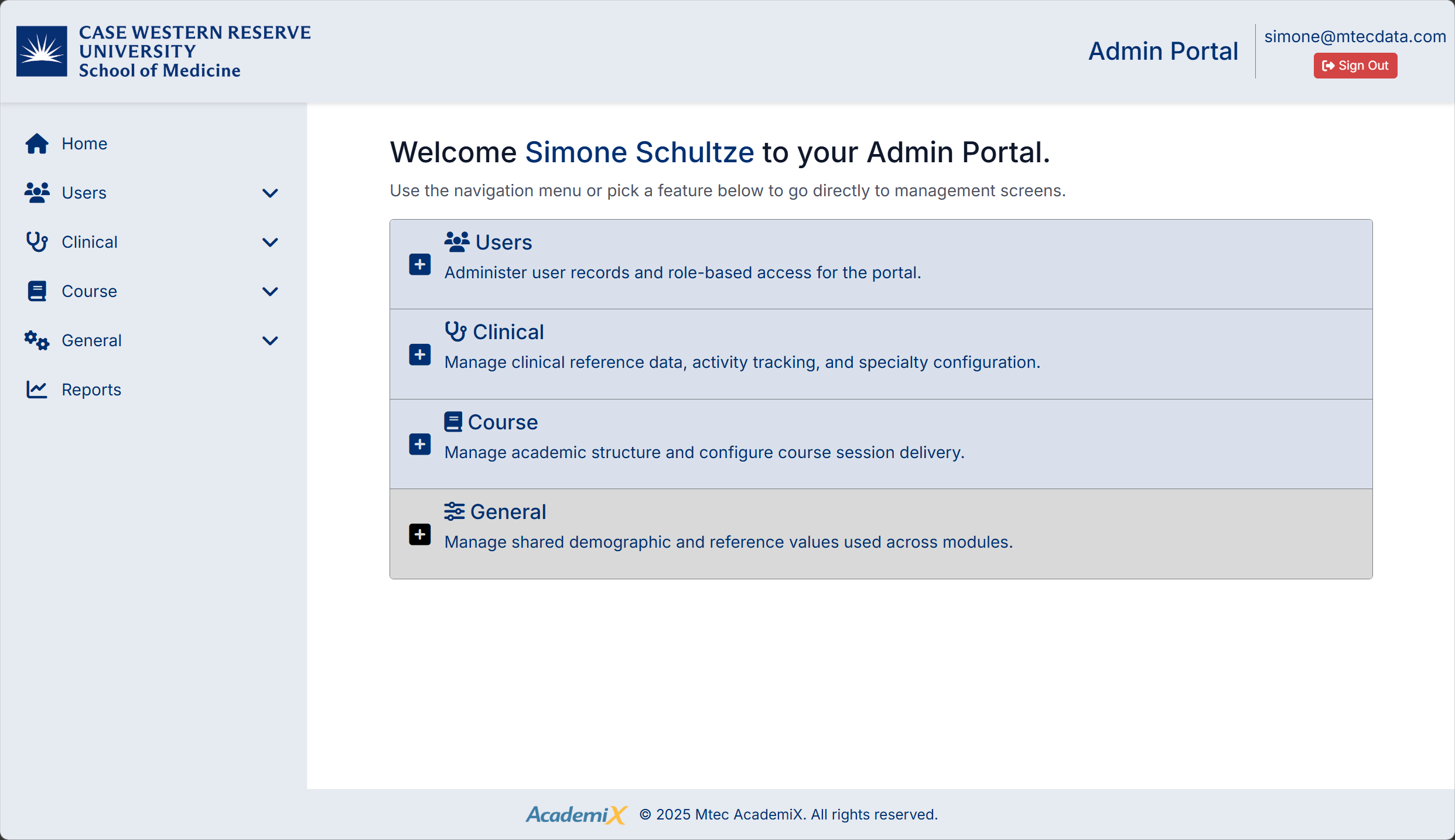
The Dashboard is the main landing page displayed after logging into the Admin Portal. It provides quick access to all major system modules and administrative functions.
From the dashboard, you can:
- Access key management areas using expandable sections
- Navigate directly to commonly used features using tiles
- Use the left-hand navigation menu to move between modules
Dashboard Layout
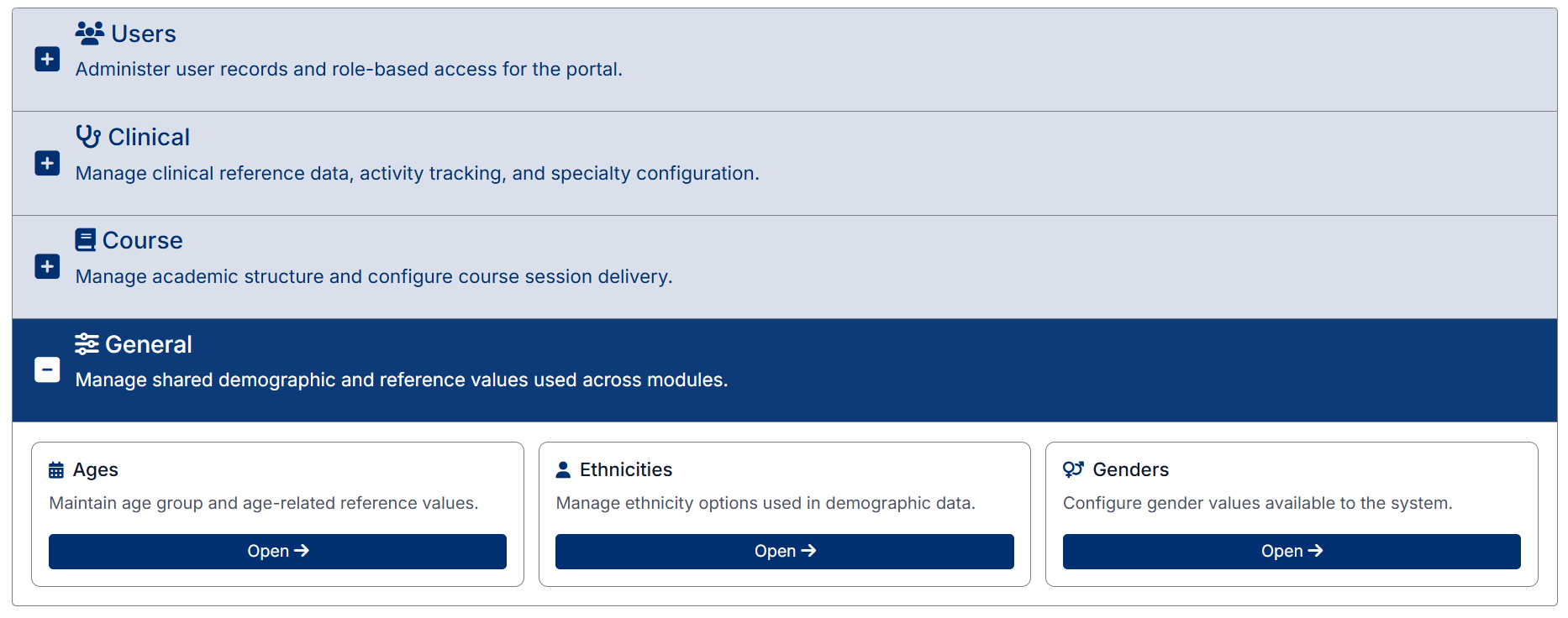
The dashboard is divided into expandable sections, each representing a core module of the system:
Each section can be expanded to reveal tiles that link directly to specific management screens.
Using Dashboard Sections
Each module on the dashboard can be expanded or collapsed:
- Click the + (plus) icon to expand a section
- Click the – (minus) icon to collapse a section
Expanding a section displays a set of tiles that provide direct access to related features.
Users Section
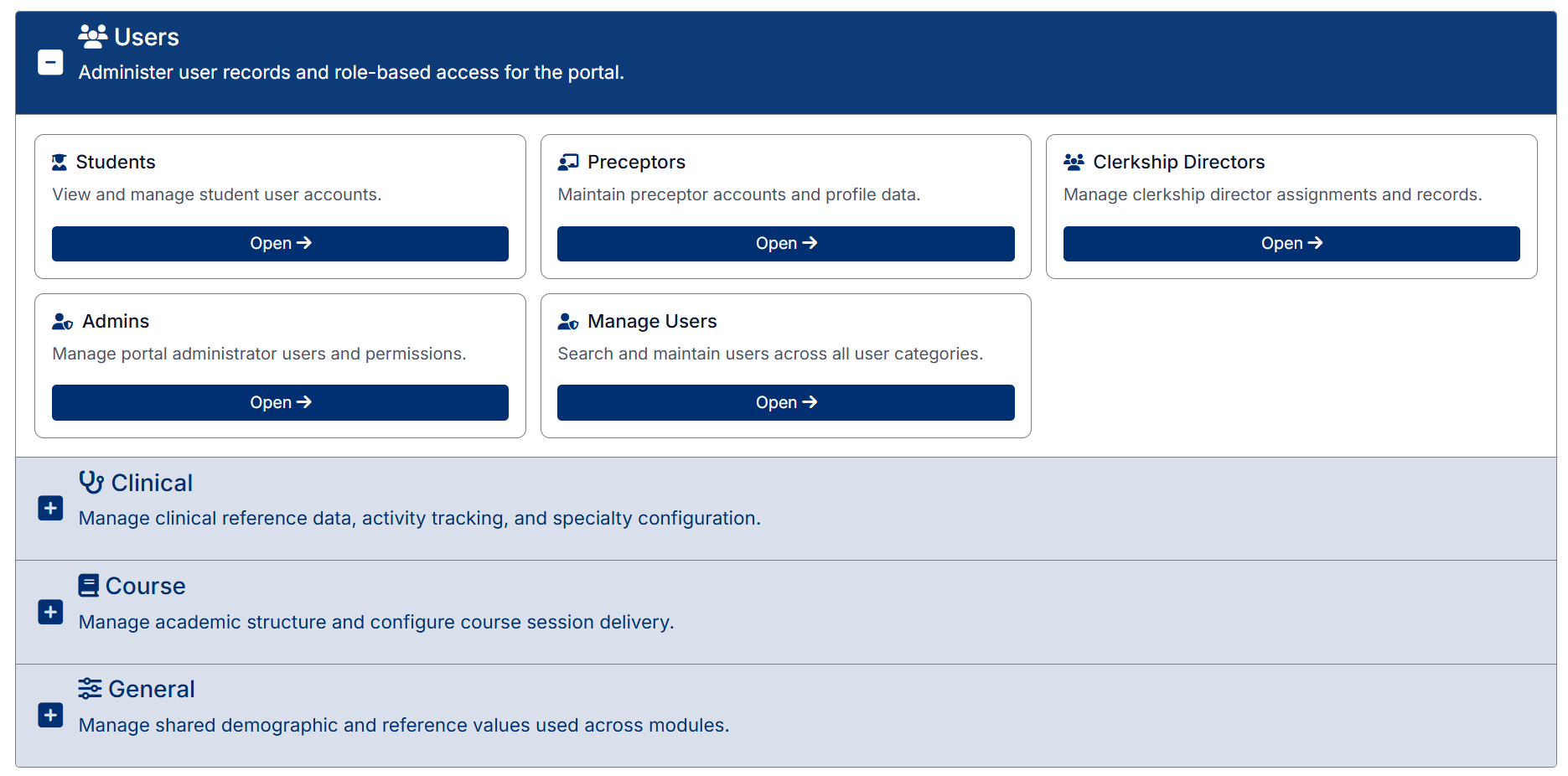
The Users section provides access to user management functions across the system.
From this section, you can access:
- Students – Manage student user accounts
- Preceptors – Manage preceptor accounts and profile data
- Clerkship Directors – Manage clerkship director records
- Admins – Manage administrator accounts
- Manage Users – Search and manage users across all categories
Click Open → on any tile to navigate to that area.
Clinical Section
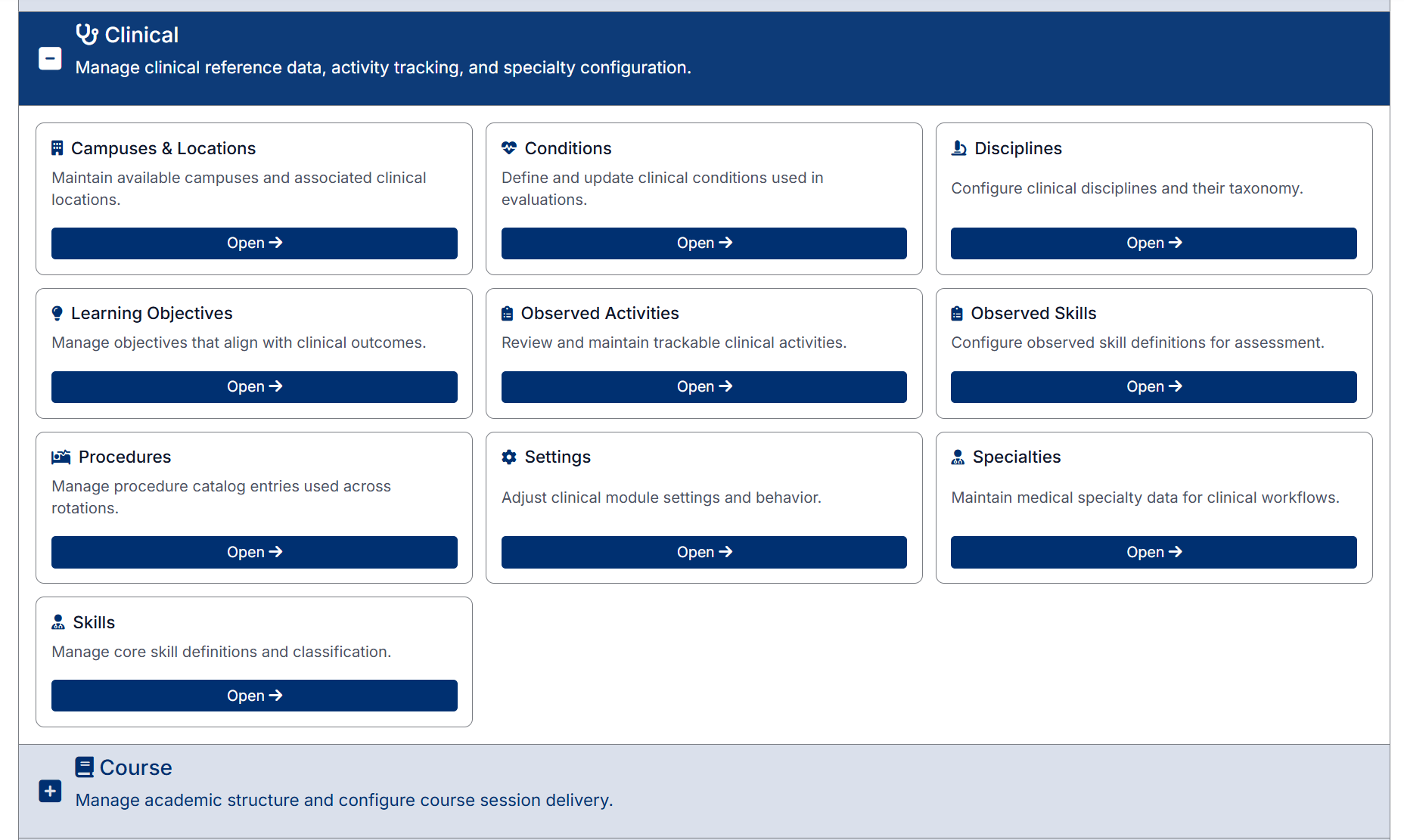
The Clinical section is used to configure clinical data and workflows.
From this section, you can manage:
- Campuses and locations
- Clinical conditions
- Disciplines and specialties
- Learning objectives
- Observed activities and skills
- Procedures
- Clinical settings
Click Open → on any tile to navigate to that area.
Course Section
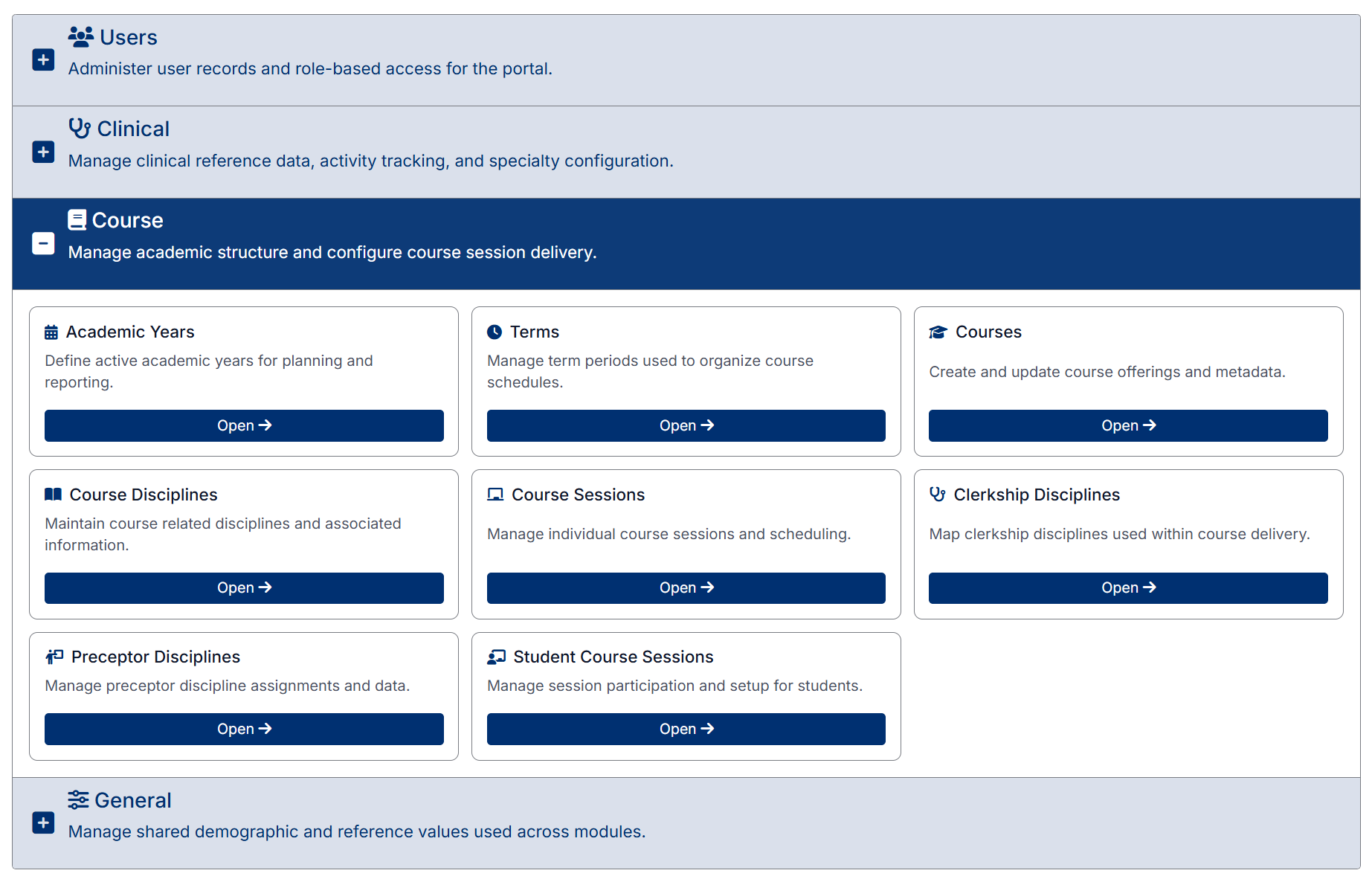
The Course section allows you to manage academic structure and course delivery.
From this section, you can manage:
- Academic years and terms
- Courses and course disciplines
- Course sessions
- Clerkship and preceptor disciplines
- Student course sessions
Click Open → on any tile to navigate to that area.
General Section
The General section provides access to shared system-wide reference data.
From this section, you can manage:
- Age groups
- Ethnicity values
- Gender options
Click Open → on any tile to navigate to that area.
Using the Navigation Menu
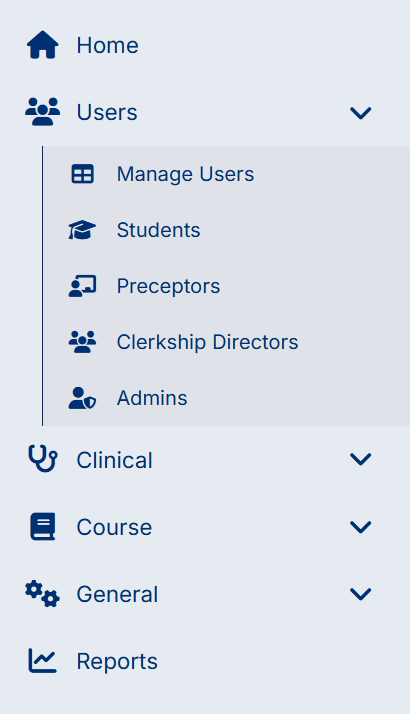
The left-hand navigation menu is available throughout the system and provides access to all modules and screens.
The main menu includes:
All sections can be expanded to display additional options:
- Manage Users
- Students
- Preceptors
- Clerkship Directors
- Admins
To navigate using the menu:
- Expand a section if needed
- Click the desired option
- The selected screen will open in the main workspace
Dashboard Tips
- Use the dashboard for quick access to commonly used areas
- Use the navigation menu for full access to all system features
- Expand only the sections you are working with to keep the screen organized
- Use the Home option in the navigation menu to return to the dashboard at any time
Created with the Personal Edition of HelpNDoc: Experience the Power and Ease of Use of a Help Authoring Tool