Manage Observed Activities

Observed Activities Management
The Observed Activities Management screen allows administrators to define and maintain the clinical activities that can be observed and tracked within the system. These activities represent the tasks or interactions that students perform and are evaluated on during their clinical training.
Observed activities are organized by Discipline and are used in patient logs, assessments, and evaluations to track student participation and performance.
Accessing Observed Activities
To access the Observed Activities Management screen:
- From the left-hand navigation menu, expand Clinical
- Select Observed Activities
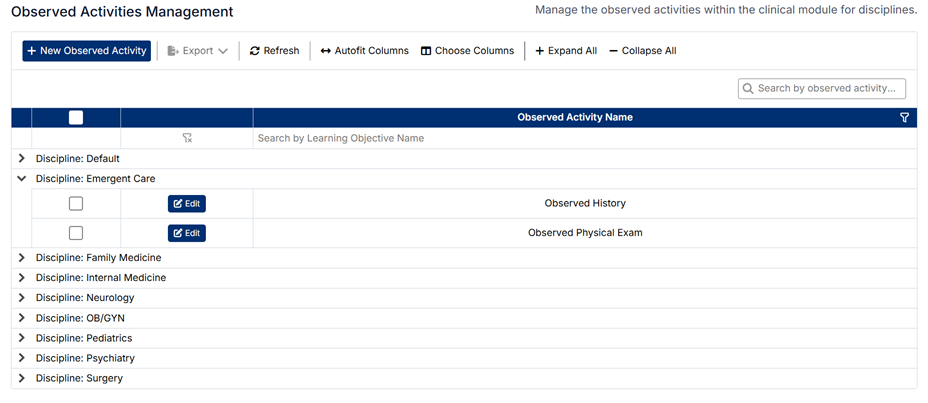
The screen displays a list of disciplines, each of which can be expanded to view the associated observed activities.
Understanding the Screen
- Observed activities are grouped under their associated Discipline
- Each discipline can be expanded or collapsed using the arrow icon
- Use Expand All or Collapse All to quickly view or hide all activities
- The search bar allows you to locate specific observed activities
- Each activity can be edited directly within its discipline group
Relationship to Disciplines
Observed activities are directly linked to Disciplines, and this relationship determines how they are used across the system.
- Observed activities are used in student patient logs to record what was performed or observed
- They are included in assessments and evaluations completed by preceptors
- The selected discipline ensures that only relevant activities are available within the correct clinical context
Proper alignment ensures accurate tracking of clinical experience and meaningful evaluation.
Creating a New Observed Activity
To create a new observed activity:
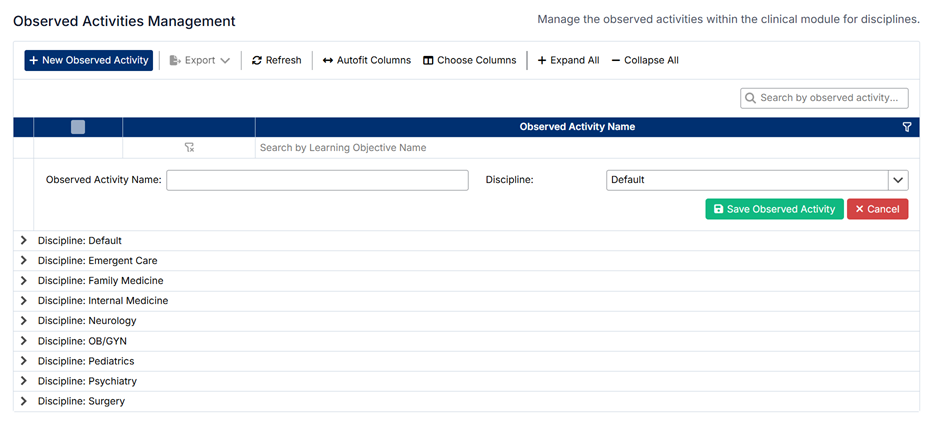
- Click + New Observed Activity
- Enter the Observed Activity Name
- Select the appropriate Discipline from the dropdown list
- Click Save Observed Activity
The new activity will appear under the selected discipline.
Editing an Existing Observed Activity
To edit an observed activity:
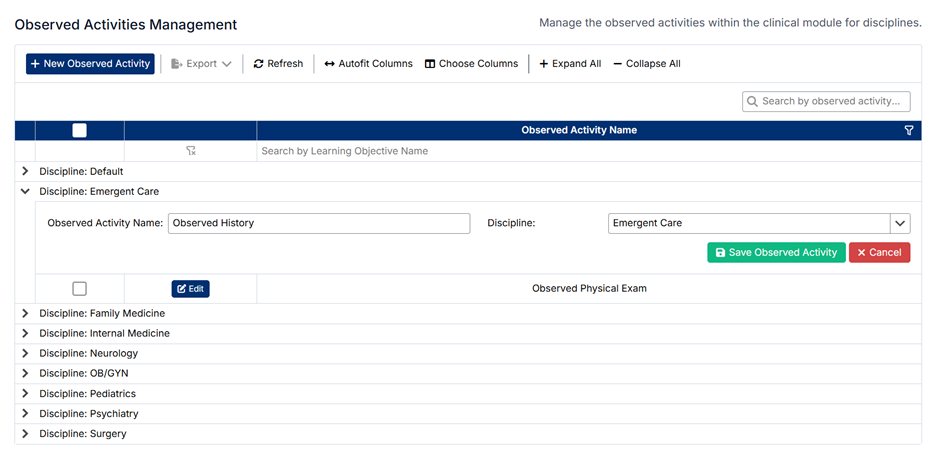
- Expand the relevant Discipline
- Locate the activity you want to update
- Click Edit
- Update the Observed Activity Name or change the Discipline if required
- Click Save Observed Activity
Changes will be applied immediately and reflected wherever the activity is used.
Deleting Observed Activities
⚠️ Observed activities cannot be deleted.
This restriction ensures data integrity, as observed activities may be linked to:
- Existing student patient logs
- Assessments and evaluations
- Historical tracking and reporting data
If an observed activity is no longer required, it is recommended to:
- Leave it unused going forward
- Or update its name if appropriate
Important Notes
- Observed activities are a key part of tracking student clinical exposure
- They directly influence what preceptors can select when completing evaluations
- Changes may impact reporting and historical data consistency
Maintaining clear and accurate observed activities ensures reliable tracking of clinical experiences and supports meaningful student assessment.

Created with the Personal Edition of HelpNDoc: Modernize your help files with HelpNDoc's WinHelp HLP to CHM conversion tool