Manage Specialities

Specialties Management
The Specialties Management screen allows administrators to define and maintain medical specialties within the clinical module. Specialties provide a more detailed classification within a Discipline, helping to organize clinical areas and refine how data is captured and reported.
Specialties are linked to disciplines, ensuring they are used within the correct clinical context.
Accessing Specialties
To access the Specialties Management screen:
- From the left-hand navigation menu, expand Clinical
- Select Specialties
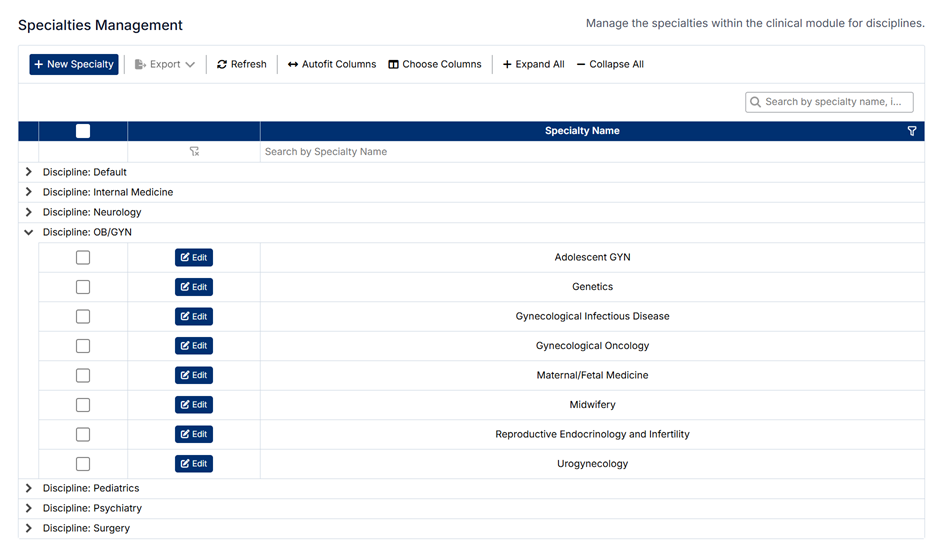
The screen displays a list of disciplines, each of which can be expanded to view the associated specialties.
Understanding the Screen
- Specialties are grouped under their associated Discipline
- Each discipline can be expanded or collapsed using the arrow icon
- Use Expand All or Collapse All to quickly view or hide all specialties
- The search bar allows you to locate specific specialties
- Each specialty can be edited directly within its discipline group
Relationship to Disciplines
Specialties are directly linked to Disciplines, and this relationship determines how they are used throughout the system.
- Specialties provide a sub-category within a discipline (e.g., OB/GYN → Maternal/Fetal Medicine)
- They help refine clinical classification and reporting
- They may be used in workflows such as patient logs, assessments, and analytics
- The selected discipline ensures specialties are only available within the appropriate clinical area
This structure allows for more granular tracking of clinical experience.
Creating a New Specialty
To create a new specialty:
- Click + New Specialty
- Enter the Specialty Name
- Select the appropriate Discipline from the dropdown list
- Click Save Specialty
The new specialty will appear under the selected discipline.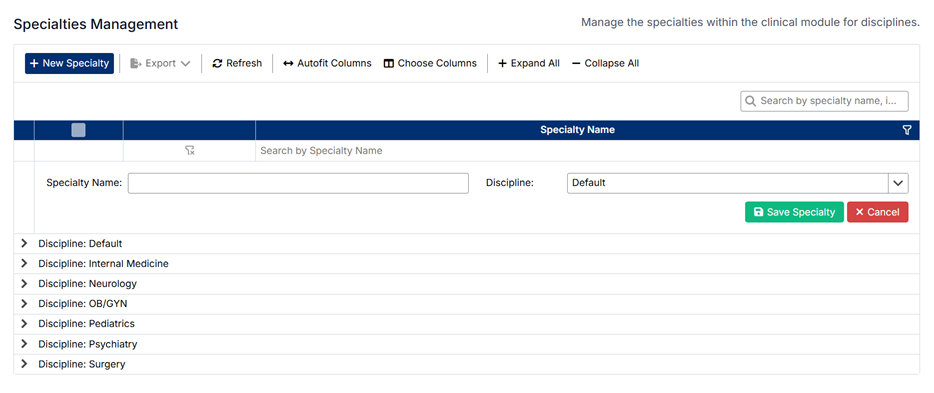
Editing an Existing Specialty
To edit a specialty:
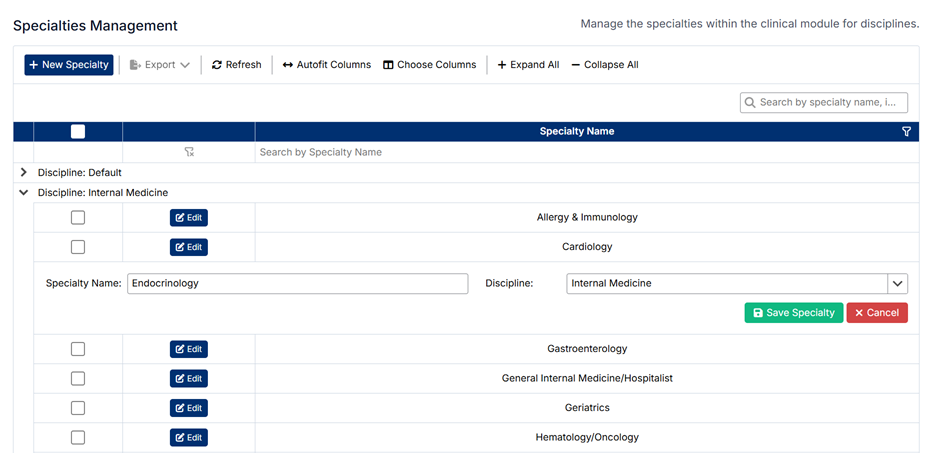
- Expand the relevant Discipline
- Locate the specialty you want to update
- Click Edit
- Update the Specialty Name or change the Discipline if required
- Click Save Specialty
Changes will be applied immediately and reflected wherever the specialty is used.
Deleting Specialties
⚠️ Specialties cannot be deleted.
This restriction ensures data integrity, as specialties may be linked to:
- Patient logs
- Assessments and evaluations
- Reporting and historical data
If a specialty is no longer required, it is recommended to:
- Leave it unused going forward
- Or update its name if appropriate
Important Notes
- Specialties are a refinement of disciplines, providing more detailed classification
- Changes to specialties may impact reporting and clinical data entry
- Ensure specialties are clearly defined and correctly assigned to the appropriate discipline
Proper management of specialties improves the accuracy and usefulness of clinical data across the system.
Created with the Personal Edition of HelpNDoc: Maximize Your CHM Help File Capabilities with HelpNDoc