Manage Clerkship Director Disciplines

Clerkship Disciplines Management
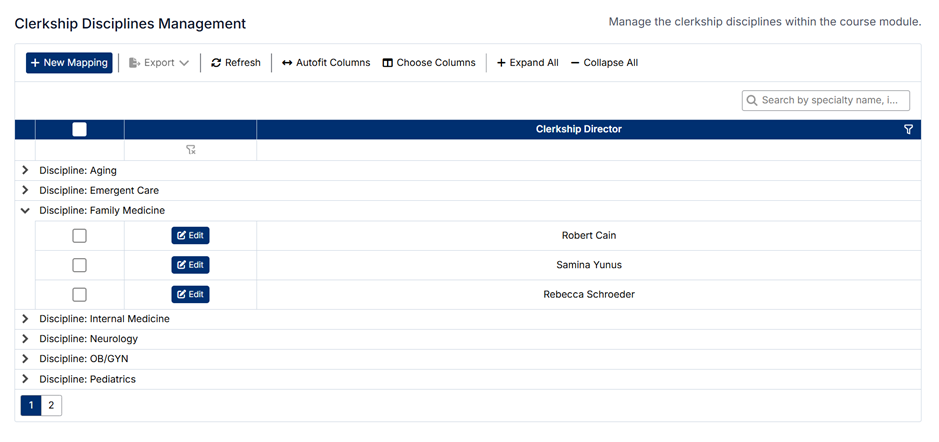
The Clerkship Disciplines Management screen allows administrators to map Clerkship Directors to specific disciplines. This ensures that each discipline is overseen by the appropriate academic lead and that the correct users have visibility and responsibility within the system.
Accessing Clerkship Disciplines
To access this screen:
- From the left-hand navigation menu, select Course
- Click Clerkship Disciplines
The screen displays all mappings between clerkship directors and disciplines.
Understanding the Screen
- Data is grouped by Discipline
- Expanding a discipline displays the Clerkship Directors assigned to it
- Each row shows:
- Clerkship Director Name
- The toolbar includes:
- + New Mapping
- Export, Refresh, Autofit Columns, and Choose Columns
- The search bar allows filtering by discipline or clerkship director
- Each mapping can be edited using the Edit button
Relationships and Data Structure
Clerkship Disciplines form a key relationship between users and the clinical/course structure:
- Disciplines (Clinical Module)
- Define the academic or clinical area (e.g., Family Medicine, Surgery)
- Created and managed in Clinical → Disciplines
- Clerkship Directors (Users Module)
- Users responsible for overseeing a discipline
- Managed in Users → Clerkship Directors
- Courses and Course Disciplines
- Clerkship directors are indirectly linked to courses through discipline mappings
- Clinical Data
- Clerkship directors interact with discipline-specific data such as learning objectives, conditions, and assessments
This mapping ensures that each discipline has the appropriate leadership and oversight.
How Clerkship Disciplines Are Used
Clerkship discipline mappings are used to:
- Assign ownership and responsibility for each discipline
- Control what clerkship directors see and manage in their portal
- Support course delivery and oversight
- Align academic leadership with clinical disciplines
- Enable structured reporting and evaluation workflows
Creating a New Mapping
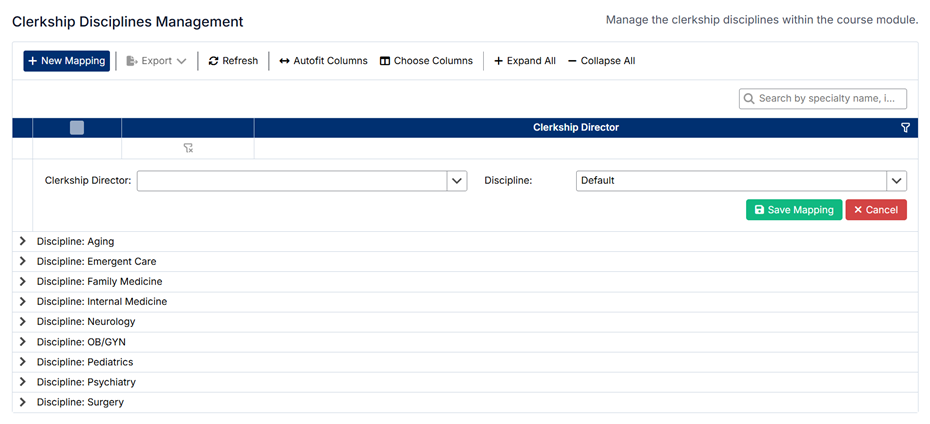
To assign a clerkship director to a discipline:
- Click + New Mapping
- Select the Discipline
- Select the Clerkship Director
- Click Save
The mapping will appear under the selected discipline.
Editing an Existing Mapping
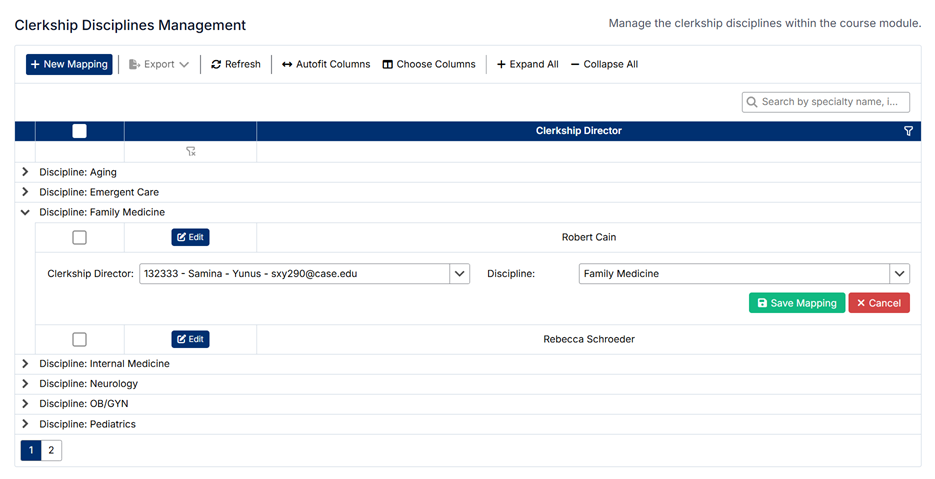
To edit a mapping:
- Locate the mapping under the relevant discipline
- Click Edit
- Update the discipline or clerkship director as needed
- Click Save
Changes are applied immediately.
Deleting a Mapping
To delete a mapping:
- Select the checkbox next to the mapping(s)
- Click Delete (if available)
- Confirm the deletion
⚠️ Deleting a mapping removes the association between the clerkship director and the discipline but does not delete either record.
Important Notes
- A discipline can have multiple clerkship directors
- Clerkship directors must exist in the Users → Clerkship Directors section before they can be assigned
- Disciplines must be created in Clinical → Disciplines before mapping
- These mappings directly affect visibility, permissions, and oversight responsibilities
Proper configuration ensures that each discipline is supported by the correct academic leadership and that workflows function as intended.
Created with the Personal Edition of HelpNDoc: Streamline Your Documentation Process with a Help Authoring Tool